Trying (and failing) to migrate to Ghost 6
Gut punch after gut punch


Ghost 6 recently released, and one of the new exciting features is that they now officially support Docker Compose for people who want to self-host Ghost. When I got the email notifying me of the release, I was excited; my current setup is a little bit janky. Back when I set this blog up, I used this GitHub repo to build off, which I think was originally meant for hosting on Digital Ocean servers. It was easy to get setup, however there are some small niggling issues that, in hindsight, make it harder to manage.
Naturally, I jumped at the opportunity to migrate to Ghost 6. After making a full backup of the server before making any changes, I began working through the official guide on How To Install Ghost With Docker.
Wait, what about my data?
One small issue before I even began: while the guide includes a script to migrate from an existing installation, it only supports ghost-cli installations. Since I had created my installation using Docker, this script was unfortunately not going to work for me.
All the media files were hidden away in an internal Docker directory (/var/lib/docker/volumes/ghostcms_ghost/_data) and the database files in a separate Docker directory (/var/lib/docker/volumes/ghostcms_db/_data). Meanwhile, the actual directory containing the docker-comp0se.yml file is ~/docker/ghost-cms/
This wasn't going to be as straightforward as it probably should've been, had I not taken the 'easy' route way back when.
I resigned myself to the fact that if everything worked as planned, I'd likely need to do a bit of manual work later to copy the media files and import my previous posts and Ghost config to the new installation. Ghost has an export function that dumps all your data to a JSON file, so I figured it won't be the end of the world - I can just import the posts and settings then map the actual media files later.
So, I continued. I followed the script all the way through, ran docker compose up -d to bring the blog online. I held my breath, opened my browser, navigated to the blog's URL and was greeted with... nothing!
Hmm.
A blank screen
To make a long story short, there were two issues:
- My existing Cloudflare Tunnel is mapped to traffic on Ghost's default port
2468however the new setup utilises Caddy, which maps traffic to the default HTTP/HTTPS ports of 80/443 respectively. - It also turns out that Caddy's HTTP/HTTPS redirection was butting heads with the Cloudflare Tunnel I have in place to make this blog available from my server. This was causing redirect loops and getting in the way of the automatic HTTPS that Cloudflare handles.
The fix was to change the port in Cloudflare to map HTTP traffic to server_ip:80 and then replace the provided example Caddyfile with the simplified version below:
{
    auto_https off
}

http://{$DOMAIN} {
    reverse_proxy ghost:2368 {
        header_up X-Forwarded-Proto https
        header_up X-Forwarded-Port 443
    }
}
Great! Now I could actually create an admin account and login.
Unable to login
The next issue? I couldn't login on another device. The guide covers how to setup SMTP for emails, however I chose not to do this (I also didn't do this on my previous setup).
This time around, it turns out that the latest version of Ghost enforces 2FA emails when admins try to login; if the mail server isn't setup, you can't login! Simple as that.
I figured that I would need to setup the SMTP settings after all. I figured since I already pay for iCloud+ I might try setting up Ghost with Apple's SMTP service. I generated an app-specific password and plugged the details into the .env file, and then reloaded the Docker containers. No success. Looking at the server logs, it was complaining that the mail setup was missing a 'From' address.
OK... weird this isn't included in the .env.example file in the Github repo, but whatever. I added the mail__from environment variable. Still no success! I began banging my head against the wall.
The next stumbling block that I hit, as far as I can tell, is that the SMTP traffic was not able to be routed through the Cloudflare tunnel. It kept reporting some sort of ESOCKET error when attempting to send the 2FA emails. I was nearly at the point of tearing my hair out! All I wanted to do was login to the friggin' admin page.
Now, as a side note, I did actually check and there is indeed a setting within Ghost to control this behaviour - and it was already turned off! The setting has seemingly zero effect as even if it's toggled off, Ghost attempts to send an email and fails, leaving you stranded.
After what felt like hours of Googling, it turns out there is an environment variable that allows you to switch off these verification emails entirely:
environment:
  security__staffDeviceVerification: false
Once this is included in the compose.yml file (or the .env file - I must admit I've forgotten...), you can now skip the 2FA email and log straight in.
Great... that only wasted hours of my time! 😄
Throwing in the towel
The final point where I threw in the towel was that after exporting a .json file from my original installation of my posts then importing this into the new installation, apparently posts are the only thing that get migrated; no other settings are changed.
My Ghost theme isn't particularly customised, but enough so that it would take some trial and error to get it back to how I like it. In addition to the aforementioned fact that I'd also need to manually fix the broken media references to images/videos/etc. I ended up a bit fed up with the whole process, and decided to just restore the server from my backup.
One final issue
Then came the final gut punch - while the backup restoration appeared to be successful, the server would not turn on. Every time I tried to launch the LXC it had an error and failed to start. After banging my head against the wall for a couple of hours, consulting ChatGPT for answers, eventually giving up, going to bed, and then the next day spending my morning commute on the training continuing to work on the problem remotely from my phone, I stumbled onto the fix.
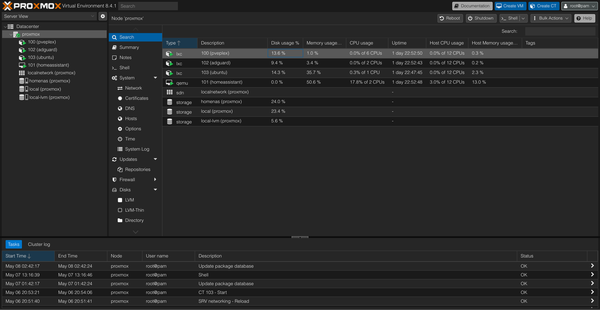
This one turned out to be 100% my fault; I have my NAS setup as a storage provider in Proxmox in order to write backups to it. It turns out that when I was choosing to restore the LXC from a backup, there's a small dropdown menu that specifies the storage you want to use. I assumed this meant for retrieval; but I think it actually tries to initialize the backup onto this storage device.
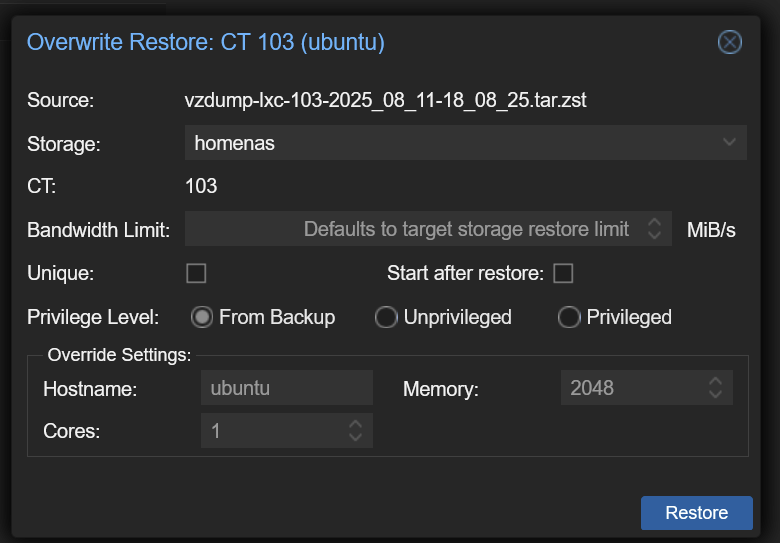
After flicking this dropdown over to the local-lvm storage, the LXC started up happily and I was back in action. Great!
Summary
All in all, not a successful endeavour - but many lessons learned! I still think it's worthwhile for me to migrate across to the new hotness (Ghost 6 with Docker Compose) but I'm in much less of a rush after all of the above.
Hopefully I'll make another attempt in the next couple of weeks!